Our Top Picks
 HUION Drawing Tablet H420X Graphics Tablet with 8192Small6.77 x 4.3 x 0 inches0.2 PoundsCheck on Amazon




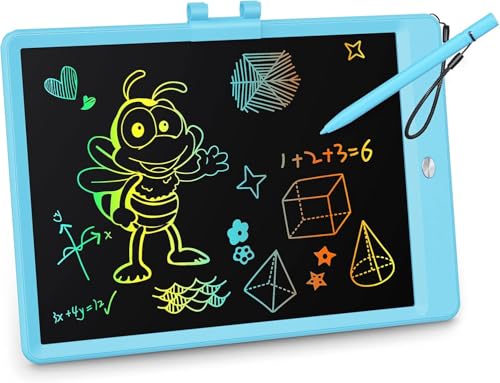
The best drawing tablet overall in 2026 is the HUION Kamvas 13 (Gen 3) — a 13.3-inch pen display with a battery-free pen, dual dials and a screen you draw directly on, which suits committed hobbyists and working illustrators who are tired of drawing blind. If your priority is spending as little as possible while still getting real pressure sensitivity, the HUION Inspiroy H640P is the budget pick that does the fundamentals properly. If you want maximum pressure headroom and a pro-grade workflow, the XP-PEN Artist 13.3 Pro V2 with 16K pressure sensitivity is the premium choice. Screen-less tablets such as the Wacom Intuos Small, GAOMON S620 and XOPPOX 10×6 remain the right answer for small desks and tight budgets, while LCD writing tablets — KOKODI, TEKFUN, Kayoubi — are not drawing tablets at all. They are erasable boards with no pressure sensitivity and no file output, useful for lists, notes and toddlers, not for illustration.
Top 3 Picks
Best overall: HUION Kamvas 13 (Gen 3). The most sensible place to land if you draw regularly and want the hand-eye connection of drawing on the artwork itself. A 13.3-inch screen is big enough to work on without dominating a desk, and the dual dials plus shortcut keys keep your non-drawing hand busy. It suits hobbyists stepping up and freelancers who want a second, portable workstation.
Best budget: HUION Inspiroy H640P. A 6 x 4 inch screen-less tablet with 8,192 levels of pressure and a battery-free pen. It is the cheapest honest way into digital drawing: nothing about the core pen experience is crippled, you simply work smaller and keep an eye on your monitor. Ideal for first-timers, students and anyone unsure whether they will stick with it.
Best premium: XP-PEN Artist 13.3 Pro V2. The same 13.3-inch class as the Kamvas but with 16K pressure sensitivity, 60° tilt and a shortcut dial. It suits illustrators who use very light, slow strokes — glazing, airbrush gradients, fine linework — where pressure resolution shows up in the finished image rather than on a spec sheet.
Quick Comparison
| Product | Best for | Key specs | Price tier |
|---|---|---|---|
| Wacom Intuos Small | Beginners who want the least fiddly setup | ~6.0 x 3.7 in active area, 4,096 pressure levels, 4 express keys, battery-free pen, wired USB, no display | Mid-range |
| HUION Inspiroy H1060P | Large-area work on a fixed desk | 10 x 6.25 in active area, 8,192 pressure levels, 12 hard + 16 soft keys, battery-free pen, wired, no display | Premium |
| HUION Inspiroy H640P | First pen tablet on a tight budget | 6 x 4 in active area, 8,192 pressure levels, 6 shortcut keys, battery-free pen, wired, no display | Budget |
| Frunsi RubensTab T11 Pro | Drawing with no computer at all | Standalone tablet, built-in ~11-inch class display, Android-based, rechargeable battery, stylus included | Premium |
| KOKODI LCD Writing Tablet 10″ | Toddlers and mess-free scribbling | 10 in colour-layer LCD, one-button erase, replaceable coin cell, plastic stylus, no pressure sensitivity | Budget |
| HUION H420X | Tiny desks, quick retouching, rhythm games | ~4.2 x 2.2 in active area, 8,192 pressure levels, compact shortcut keys, battery-free pen, wired | Budget |
| TEKFUN 16″ LCD Writing Tablet | Adults who want a big reusable board | 16 in colour-layer LCD, one-button erase, lock key, replaceable coin cell, no pressure sensitivity | Mid-range |
| Kayoubi 14.5″ LCD Writing Tablet | Kids who have outgrown a small doodle board | 14.5 in colour-layer LCD, pink shell, one-button erase, stylus with lanyard, no pressure sensitivity | Budget |
| HUION Kamvas 13 (Gen 3) | Drawing directly on screen | 13.3 in 1920×1080 display, 8,192-level-plus battery-free pen, dual dials, 8 keys, USB-C, anti-glare surface | Premium |
| XP-PEN Artist 13.3 Pro V2 | Illustrators wanting pressure headroom | 13.3 in 1920×1080 display, 16K pressure sensitivity, 60° tilt, 8 keys + dial, battery-free pen | Premium |
| GAOMON S620 | Cheapest route to shortcut keys | 6.5 x 4 in active area, 8,192 pressure levels, 4 hot keys, battery-free pen, wired, no display | Budget |
| XOPPOX 10×6 Graphics Tablet | Large canvas at mid-range money | 10 x 6 in active area, 8,192 pressure levels, battery-free stylus, no display | Mid-range |
How We Chose
Every tablet here was selected on published specifications and category fit, not on hands-on use. We started with the four numbers that actually change how drawing feels — pressure levels, active area, pen power source and screen presence — and grouped products by the job they are built for rather than by price alone. A 6 x 4 inch screen-less tablet and a 13.3-inch pen display are not competitors; they solve different problems, and a roundup that ranks them on one ladder is not useful to anyone.
From there we applied three filters. First, upgrade path: does the product lead somewhere sensible, or is it a dead end with no replacement nibs, no driver updates and no larger sibling? Second, category honesty: LCD writing tablets were included because people search for them alongside drawing tablets, but they are labelled here as erasable boards rather than illustration tools. Third, spec class over marketing numbers: where a listing gives a precise figure we use it, and where it does not we describe the class instead of inventing a value. Consumables, nib availability, desk footprint and connection type were weighed as heavily as headline specs, because those are what you live with after the first week.
1. Wacom Intuos Small – Best for Beginners Who Want the Least Fuss
As an Amazon Associate we earn from qualifying purchases at no extra cost to you.

The Intuos Small is the tablet to buy when you want your first pen tablet to disappear into your workflow. It suits students, note-takers and beginners following tutorials written for Wacom hardware, and anyone who would rather have a mature driver than a bigger drawing area. It is a wired, screen-less tablet: you draw on the pad while watching your monitor, and your hand learns a new motor skill over the first week or two.
- Active area: roughly 6.0 x 3.7 inches — small, laptop-bag friendly, 16:10 shaped
- Pressure: 4,096 levels with a battery-free pen that never needs charging
- Controls: four express keys, which is on the low side for a shortcut-heavy workflow
- Connection: wired USB on this variant; no Bluetooth, so no cable-free sessions
- Compatibility: Windows and macOS
- In the box: pen, cable, nibs, plus a software bundle whose titles vary by region and change over time
The case for it is not the spec sheet — it is everything around the spec sheet. Wacom’s driver stack is the one every other manufacturer is measured against, and it behaves predictably across app updates, operating system updates and multi-monitor setups. Replacement nibs are stocked everywhere, which matters more than most buyers expect, because nibs are the one part of a drawing tablet that genuinely wears out. If you take a class or follow a YouTube series, the instructions will almost certainly assume a Wacom tablet, and you will spend your time drawing rather than troubleshooting mapping.
The trade-off is value. At a mid-range price you get a smaller active area, fewer keys and half the pressure levels of budget tablets from HUION, GAOMON and XOPPOX. If your budget is fixed and you want maximum drawing surface per pound spent, this is not the tablet for you. If your priority is a setup that works on the first attempt and keeps working, the premium is defensible.
Pros
- The most predictable driver experience in the category
- Battery-free pen — nothing to charge, nothing to replace but nibs
- Software bundle included, useful for beginners with no art app yet
- Compact footprint, easy to travel with or slide into a laptop sleeve
- Nibs and accessories widely stocked for years after purchase
Cons
- 4,096 pressure levels where similarly priced rivals list 8,192
- Small active area — long strokes require zooming in
- Only four express keys, and no touch ring or dial
- No Bluetooth on the wired variant, so you are tethered
Compared with the nearest alternative: the GAOMON S620 and HUION Inspiroy H640P both give you a slightly larger active area, more shortcut keys and 8,192 pressure levels for less money. The Intuos Small wins on driver reliability, software bundling and long-term accessory availability; the others win on raw specification per pound. Buy the Wacom if you value the first of those and the HUION or GAOMON if you value the second.
2. HUION Inspiroy H1060P – Best for a Large Active Area Without a Screen

The H1060P is for the artist who has decided against a pen display — usually because of budget, neck comfort or the desire to keep their monitor at eye level — but who refuses to work on a postage stamp. Its 10 x 6.25 inch active area is the largest here among screen-less tablets, and it is paired with an unusually dense set of physical controls: 12 hard keys plus 16 soft keys. It suits retouchers, illustrators with shortcut-heavy workflows and anyone running a large monitor who wants a one-to-one-ish mapping between hand movement and cursor movement.
- Active area: 10 x 6.25 inches — roughly 62 square inches of drawing surface
- Pressure: 8,192 levels, the current mid-market standard, with a battery-free pen
- Controls: 12 programmable hard keys plus 16 soft keys, which can absorb an entire app’s shortcut set
- Connection: wired USB — no charging, no latency worries, no battery to age
- Shape: 16:10 active area, which is wider than a 16:9 monitor’s proportions
- Desk footprint: large; measure your desk before committing
Where this tablet earns its keep is muscle memory. Sixteen soft keys plus twelve hard keys is enough to hold brush size, opacity, undo, layers, selection tools and a couple of app-specific commands without ever reaching for the keyboard. If you spend four hours a day in a paint application, that is a genuine speed difference rather than a marketing feature. The large surface also reduces the amount of zooming you do on a 27-inch or larger display, because a two-inch stroke on the tablet maps to a proportionally shorter stroke on screen.
The costs are physical. A tablet this size needs real desk space, and if your keyboard sits in front of your monitor you will be rearranging things. Because it is wired, cable routing matters — a cable that tugs at the connector is one of the most common causes of premature tablet death. And the pressure level count, while standard for the class, is no longer a headline number; the reason to buy this model is area and keys, not sensitivity.
Pros
- Largest active area among the screen-less tablets in this roundup
- 12 hard keys plus 16 soft keys — enough for a full shortcut workflow
- 8,192 pressure levels with a battery-free pen
- Wired connection means zero charging routine and no wireless dropout
- Comfortable mapping on large desktop monitors
Cons
- Substantial desk footprint; not a lap or sofa tablet
- No display, so hand-eye coordination still has to be learned
- Wired only — you are tied to the machine
- The dense key layout takes time to learn and can be mis-hit at first
Compared with the nearest alternative: the XOPPOX 10×6 offers a very similar active area at a lower tier, but with far fewer physical controls and a simpler feature set. If you mostly draw and rarely touch shortcuts, the XOPPOX is the more economical route to a big canvas. If your work is shortcut-driven — retouching, comic lettering, 3D texturing — the H1060P’s key count justifies the step up in tier.
3. HUION Inspiroy H640P – Best Budget Pen Tablet for Hobbyists

The H640P is the tablet to buy when you have decided to try digital drawing but are not ready to commit real money. Its 6 x 4 inch active area is compact, its pen needs no battery, and its pressure sensitivity is the same 8,192-level class found in tablets costing several times more. It suits absolute beginners, students on a fixed budget, hobbyists who sketch in the evening, and anyone who wants a second tablet to keep in a bag.
- Active area: 6 x 4 inches — roughly 24 square inches, 16:10 shaped
- Pressure: 8,192 levels with a battery-free pen
- Controls: six programmable shortcut keys along the side
- Connection: wired USB; no charging and no Bluetooth pairing
- Compatibility: Windows, macOS and Android, depending on the device’s OTG support
- Footprint: small enough to sit beside a laptop on a cafe table
What makes it a genuine recommendation rather than a compromise is that nothing core has been cut. Pressure response, pen feel and driver behaviour are the same family as the brand’s larger tablets; you are simply working on a smaller surface. For sketching, line art, basic colouring, photo retouching and note-taking, 24 square inches is enough — you will zoom more often than an artist on a 10 x 6 pad, and long sweeping strokes become two strokes, but the work itself is not limited by the hardware.
The practical ceiling shows up in two places. First, mapping: on a 27-inch monitor, a 6 x 4 tablet means a very high cursor-to-hand ratio, which makes precision clicking fiddly until you adjust the mapping or reduce the active area further. Second, shortcut capacity: six keys cover the essentials — undo, brush size, zoom, eraser — but not much beyond that. Neither is a dealbreaker at this tier; both are reasons people eventually upgrade.
Pros
- 8,192 pressure levels at a budget price
- Battery-free pen with no charging routine
- Small, light and easy to store or travel with
- Six shortcut keys cover the commands beginners actually use
- Works with Android devices that support OTG, which extends its life beyond the desktop
Cons
- Small active area means frequent zooming on large monitors
- No display, so the hand-eye learning curve is unavoidable
- Six keys is limited for shortcut-heavy applications
- Wired only, with no wireless option at this tier
Compared with the nearest alternative: the GAOMON S620 sits at the same tier with a marginally larger 6.5 x 4 inch area but only four hot keys. The H640P gives you two more physical controls; the S620 gives you a sliver more drawing surface. Either is a fine first tablet, and the difference between them matters far less than whether you put in the hours. If you can stretch to a mid-range budget, the XOPPOX 10×6 doubles the active area for a modest step up.
4. Frunsi RubensTab T11 Pro – Best Standalone Drawing Tablet

The RubensTab T11 Pro is the odd one out in the best possible way: it is a standalone drawing tablet, meaning it has its own display, its own operating system and its own battery, and it does not need a computer at all. It suits travellers, commuters, students who want to sketch in a lecture hall, parents buying a first serious art device for a teenager, and anyone whose laptop is a locked-down work machine they cannot install software on.
- Form factor: a self-contained tablet with a built-in display in roughly the 11-inch class
- Operating system: Android-based, so apps come from an app store rather than a desktop installer
- Input: a stylus is included; pressure support depends on the app you use
- Power: rechargeable internal battery — this is one of the few products here where battery life is a genuine specification rather than a non-issue
- Connectivity: Wi-Fi for app downloads, updates and file transfer
- Computer required: none
The appeal is entirely about removing friction. There is no driver to install, no cable to route, no monitor to sit in front of, and no desk required. You pick it up, open an app and draw. For a hobbyist who draws in short bursts — on a train, on a sofa, in a waiting room — that convenience is worth more than any pressure-level figure, because the best tablet is the one you actually reach for.
The honest limits are the app ecosystem and the performance ceiling. Android drawing apps have improved enormously, but they are not desktop-class illustration suites, and features like complex layer stacks, colour management and large-file handling can be constrained by mobile hardware. Getting finished work onto a desktop for final production usually means exporting and transferring rather than working in a shared file. Treat the RubensTab as a sketchbook that happens to be digital, not as a replacement for a workstation.
Pros
- No computer, no drivers, no cables — the lowest-friction setup in this roundup
- Built-in display means you draw directly on the artwork
- Rechargeable battery makes it genuinely portable
- Good fit for teenagers, students and travellers
- Doubles as a general-purpose Android tablet when you are not drawing
Cons
- Android app ecosystem is narrower than desktop software
- Mobile-class performance constrains very large or layered files
- Battery life degrades over years of charging cycles, as with any tablet
- File handoff to a desktop workflow adds a step
- Premium tier pricing for a device that cannot run desktop illustration software
Compared with the nearest alternative: the HUION Kamvas 13 (Gen 3) is also a screen you draw on, but it is a peripheral — it needs a computer and desktop software, and in exchange you get a larger screen, a more capable pen and no app-ecosystem ceiling. Choose the RubensTab if portability and independence matter most; choose the Kamvas if you already have a computer and want professional software.
5. KOKODI LCD Writing Tablet – Best for Very Young Kids

Let us be direct: the KOKODI is not a drawing tablet in the illustration sense. It is a
The best drawing tablet for most artists in 2026 is the HUION Kamvas 13 (Gen 3): a 13.3-inch pen display with a battery-free pen, 16,384 pressure levels, dual dial controllers and a full HD panel, and it is the one pick that works for a committed hobbyist and a working illustrator alike. If you already own a laptop and want to spend as little as possible, the HUION Inspiroy H640P is the best budget choice — a 6 x 4 inch screenless tablet with 8,192 pressure levels and six shortcut keys. If your work is client-facing illustration where the finest pressure resolution matters, the XP-PEN Artist 13.3 Pro V2 is the best premium pick. Everything else here maps to a specific situation: a first tablet, a tablet that runs without a computer, or a reusable LCD board for a child. This guide compares pressure levels, pen accuracy, screen size and battery behaviour so you can match a tablet to your budget and skill level instead of to a marketing number.
Top 3 Picks
Best overall: HUION Kamvas 13 (Gen 3)
A 13.3-inch pen display that removes the hand-eye disconnect of screenless tablets while staying desk-friendly. The dual dials and battery-free pen with 16,384 pressure levels cover everything from sketching to finished linework, and it works with any desktop drawing app. Best for artists who have outgrown a screenless tablet but don’t want a 16-inch panel dominating the desk.
Best budget: HUION Inspiroy H640P
The cheapest way into a genuinely pressure-sensitive workflow: 6 x 4 inches of active area, 8,192 pressure levels, six shortcut keys and a pen that never needs charging. It assumes you already own a laptop or desktop, which is the trade-off that keeps the price down. Best for a first-time digital artist testing whether they enjoy drawing on a tablet at all.
Best premium: XP-PEN Artist 13.3 Pro V2
A 13.3-inch pen display with 16K pressure sensitivity, a battery-free stylus, a shortcut key cluster and a red dial for brush size and zoom. The panel and pen feel are aimed at people who draw for hours a day and bill for it. Best for professional illustrators and concept artists who need reliable, repeatable stroke control.
Quick Comparison
Every product in this roundup is listed below with the specs that actually change how a tablet feels in use. Screenless tablets need a computer; pen displays need a computer but show the canvas under your hand; standalone tablets run their own apps; LCD writing tablets are reusable doodle boards and are not pressure-sensitive drawing tools at all.
| Product | Best for | Key specs | Price tier |
|---|---|---|---|
| Wacom Intuos Small (wired, with pen + software) | First digital tablet with the most predictable drivers | 6.0 x 3.7 in active area; 4,096 pressure levels; battery-free pen; 4 ExpressKeys; USB wired; bundled software licence | Mid-range |
| HUION Inspiroy H1060P | Large screenless canvas for desktop work | 10 x 6.25 in active area; 8,192 pressure levels; 12 side + 16 top shortcut keys; tilt support; battery-free pen; USB | Premium |
| HUION Inspiroy H640P | Cheapest real entry into pressure-sensitive drawing | 6 x 4 in active area; 8,192 pressure levels; 6 shortcut keys; battery-free pen; USB | Budget |
| Frunsi RubensTab T11 Pro | Drawing with no computer attached | Standalone Android-based tablet, 11-inch class display; bundled pressure-sensitive stylus; rechargeable battery; runs drawing apps on-device | Premium |
| KOKODI LCD Writing Tablet, 10 in | Toddlers and mess-free scribbling | 10-inch colour LCD panel; one-touch erase; screen lock switch; sealed coin cell; no pressure sensitivity; no computer needed | Budget |
| HUION H420X | Smallest possible footprint and ultra-portable sketching | Compact 4 x 2.2 in class active area; 8,192 pressure levels; battery-free pen; USB; minimal on-body controls | Budget |
| TEKFUN 16 in LCD Writing Tablet | Adults who want a large reusable note and sketch board | 16-inch colour LCD panel; one-touch erase; lock key; coin cell power; no pressure sensitivity; no computer needed | Mid-range |
| Kayoubi 14.5 in LCD Writing Tablet (pink) | Kids’ doodle gifts and travel entertainment | 14.5-inch colour LCD panel; one-touch erase; lock key; coin cell power; lightweight body; no pressure sensitivity | Budget |
| HUION Kamvas 13 (Gen 3) | Best overall pen display for hobbyist-to-pro work | 13.3 in full HD display; 16,384 pressure levels; battery-free pen; dual dial controllers plus shortcut keys; USB-C single-cable on compatible machines | Premium |
| XP-PEN Artist 13.3 Pro V2 | Professional illustration with the finest pressure resolution | 13.3 in full HD display; 16K pressure sensitivity per listing; battery-free stylus; shortcut keys plus dial; anti-glare glass surface | Premium |
| GAOMON S620 | Small desk, small budget, real pressure sensitivity | 6.5 x 4 in active area; 8,192 pressure levels; 4 hot keys; battery-free pen; USB | Budget |
| XOPPOX Graphics Drawing Tablet | Mid-range screenless tablet with a wide working area | 10 x 6 in active area; 8,192 pressure levels; battery-free stylus; on-body shortcut key strip; USB | Mid-range |
How We Chose
Selection here is research-based, not hands-on: every entry was judged on what its listing states plus well-established facts about the brand and the product class. The first filter was category fit, because “drawing tablet” covers four genuinely different devices — screenless pen tablets, pen displays, standalone Android drawing tablets and LCD doodle boards — and mixing them is the most common buying mistake. The second filter was the four specs that change the drawing experience: pressure levels, pen accuracy factors (battery-free EMR pen, tilt support, active area size), screen size and physical footprint, and battery behaviour. The third was use-case match: a 4 x 2.2 inch tablet and a 16-inch LCD board are both correct purchases for completely different people. Finally we looked at upgrade path and ownership cost — driver maturity, bundled software value, nib and consumable pricing — so each recommendation points somewhere useful if your needs grow. Nothing in this guide reflects testing, benchmarking or ownership.
1. Wacom Intuos Small, Wired Graphic Drawing Tablet with Pen + Software – Best for a First Digital Tablet With Predictable Drivers
The Intuos Small is the entry point into the Wacom ecosystem and the tablet most often recommended to someone who has never drawn digitally before. It is a wired, screenless tablet: you draw on the surface and watch the result on your monitor. The pitch is not raw spec value — it is the fact that the pen behaves consistently across Photoshop, Krita, Clip Studio Paint and just about any desktop app that supports pressure, with drivers that have been refined for far longer than anyone else in this category. It suits a beginner or a casual hobbyist who wants to spend once and not troubleshoot.
- Active area: 6.0 x 3.7 in (152 x 95 mm) — the smallest working area in this roundup
- Pressure levels: 4,096
- Pen: battery-free EMR pen with two side buttons, nothing to charge
- Controls: 4 programmable ExpressKeys, no touch ring on this size
- Connection: USB wired on this version
- Bundled software: a download licence for a creative app suite (the exact titles vary by listing)
- Form factor: roughly 8 x 6 in of desk space, thin enough to slip into a laptop sleeve
The strengths are maturity and predictability. Pen pressure ramps the way you expect it to, the nib-to-cursor mapping is tight, and the ExpressKeys give you undo, brush size and layer switching without reaching for the keyboard. The bundled software licence materially offsets the price if you were going to buy one of those apps anyway. Battery behaviour is a non-issue: the pen draws power from the tablet, so there is nothing to remember to charge.
The trade-offs are real but predictable. The active area is small, so long sweeping strokes need more wrist travel or a higher zoom level than on a 10 x 6 inch tablet. Pressure resolution tops out at 4,096, which is fine for sketching and most painting but is half of what the budget HUION models offer on paper. Wired-only means one more cable on the desk.
Pros
- The most mature driver stack in the category — fewer compatibility surprises
- Battery-free pen with no charging routine
- Compact enough to live permanently next to a keyboard
- Bundled creative software adds real value to the purchase
Cons
- Smallest active area here, which shows up in long strokes
- 4,096 pressure levels versus 8,192 on cheaper rivals
- Wired connection only on this version
- Replacement nib packs tend to cost more per nib than other brands
Versus the HUION Inspiroy H640P: the H640P gives you a slightly larger 6 x 4 inch area, double the pressure levels, six shortcut keys and a lower price. The Intuos counters with driver maturity, build consistency and the bundled software. If you value “it just works” and want a software licence included, the Intuos is the safer first purchase; if you are optimising purely for specs per pound or dollar, the H640P wins the comparison on paper.
2. HUION Inspiroy H1060P – Best for a Large Screenless Canvas on a Desktop
The Inspiroy H1060P is the tablet for someone who works at a desk, wants a large drawing surface, and does not want to pay for a screen. Its 10 x 6.25 inch active area is roughly two and a half times the area of the Intuos Small, which changes how you draw: broad shoulder strokes and full-figure gestures stay inside the tablet instead of running off the edge. It suits a committed hobbyist, a student working through a digital art course, or an illustrator who prefers to look at a colour-accurate monitor rather than a tablet screen. It is listed at a premium tier despite having no display, because the surface area and the control layout are the expensive parts.
- Active area: 10 x 6.25 in — one of the largest screenless surfaces here
- Pressure levels: 8,192
- Pen: battery-free EMR pen, tilt support for shading with the side of the nib
- Controls: 12 shortcut keys down the side plus 16 across the top — 28 programmable keys in total
- Connection: USB
- Desk footprint: plan for roughly 14 x 9 in of clear space
The key count is the headline feature and it is genuinely useful rather than decorative. With 28 assignable keys you can map an entire workflow — brush, eraser, lasso, layers, undo, zoom, colour picker — and stop touching the keyboard mid-stroke. Tilt support matters more than the pressure number for anyone doing pencil-style shading, because tilting the pen widens and softens the stroke the way a real pencil does. The large surface also means lower cursor-to-hand ratio: you can work at 100% zoom more often.
Battery behaviour is straightforward — the pen is passive, so there is no charging cycle, and the tablet itself is bus-powered over USB. The costs are desk space and portability. A 10 x 6.25 inch tablet is not something you casually take to a café, and if your desk is already crowded with a keyboard and two monitors, the footprint becomes a real constraint.
Pros
- Large active area for expressive, full-arm strokes
- 28 programmable shortcut keys cover an entire workflow
- 8,192 pressure levels and tilt support at a mid-to-high price point
- Battery-free pen with no charging routine
Cons
- Needs a substantial amount of clear desk space
- No screen, so there is still a hand-eye adjustment period
- Wired USB only
- Priced above several pen displays from the same brand
Versus the XOPPOX 10 x 6 inch tablet: both offer a wide working area and 8,192 pressure levels. The H1060P’s advantage is the sheer number of programmable keys and its tilt support; the XOPPOX’s advantage is a simpler, often cheaper mid-range proposition. If you map shortcuts heavily, the H1060P earns its premium tier; if you mostly draw with the pen and use keyboard shortcuts out of habit, the XOPPOX covers the same ground for less.
3. HUION Inspiroy H640P – Best Budget Pen Tablet for a First Setup
The H640P is the honest answer to “what is the cheapest way to find out whether I like drawing on a tablet?” It is a 6 x 4 inch screenless tablet with 8,192 pressure levels, six shortcut keys and a pen that never needs charging, and it assumes you already own a laptop or desktop. That assumption is exactly what keeps it in the budget tier. It suits a beginner, a student, a hobbyist on a tight budget, or anyone who wants a second small tablet for a laptop bag.
- Active area: 6 x 4 in — a little more usable width than the Intuos Small
- Pressure levels: 8,192
- Pen: battery-free EMR pen with side buttons
- Controls: 6 programmable shortcut keys
- Connection: USB
- Weight class: light enough to carry with a laptop daily
For the money, the specification list is difficult to argue with. 8,192 pressure levels is double the Intuos Small and, in practice, is more resolution than a beginner can reliably control — the difference between 4,096 and 8,192 shows up mainly in very light, very slow strokes. Six keys are enough for the essentials: undo, brush, eraser, zoom, layer and colour picker. The pen draws power from the tablet, so there is no battery to charge and no pairing routine.
The realistic limits are the working area and the build feel. Four inches of height means long vertical strokes need either a zoomed-out canvas or a wrist reset, and small tablets amplify any hand tremor because a tiny hand movement becomes a large cursor movement. If you later move to a 10 x 6.25 inch surface or a pen display, expect a genuine adjustment period while your muscle memory recalibrates.
Pros
- 8,192 pressure levels at the lowest price tier in this roundup
- Six shortcut keys cover the core workflow
- Battery-free pen — no charging, no pairing
- Small and light enough to travel with
Cons
- 6 x 4 inches limits long strokes and full-arm drawing
- Small surfaces magnify hand tremor
- No tilt support in the same class as the larger models
- Requires a computer — useless on its own
Versus the GAOMON S620: these two are the closest head-to-head in this guide. The S620 offers a slightly larger 6.5 x 4 inch area but only four hot keys; the H640P offers six keys and a marginally smaller surface. Neither has a meaningful pressure advantage — both are 8,192 levels. Pick the H640P if you want more on-tablet controls, and the S620 if you want a little more room to move the pen.
4. Frunsi RubensTab T11 Pro – Best Standalone Drawing Tablet That Needs No Computer
The RubensTab T11 Pro is a different category of device: a standalone tablet with its own screen and its own Android-based operating system, so it runs drawing apps on the device itself. No laptop, no cables to a desktop, no driver installation. It suits someone who draws on the sofa, travels, teaches, or wants a self-contained sketchbook they can hand to a student. It sits in the premium tier because you are paying for a display, a processor, memory and a battery in one body, not just a pen surface.
- Type: standalone tablet with integrated display — no host computer required
- Screen size: 11-inch class panel
- Stylus: bundled pressure-sensitive pen; confirm the exact pressure rating and whether tilt is supported on the current listing, as these vary between revisions
- Software: runs drawing apps from the Android app ecosystem on-device
- Battery: rechargeable, charged like any tablet — expect daily charging under heavy drawing use
- Connectivity: typically Wi-Fi plus USB-C for charging and file transfer
The obvious strength is the removal of friction. You pick it up, open an app and draw; there is no “which cable, which driver, which port” moment before you start. That matters more than it sounds: the biggest cause of a drawing tablet gathering dust is setup friction, not lack of talent. Portability is the second strength — it is the only device here that gives you a screen and a pen in a bag-friendly package with no laptop.
The trade-offs are ecosystem and longevity. Desktop software such as full Photoshop or Clip Studio Paint is not what you are running here; you are working within a mobile app ecosystem with its own feature ceilings. Performance is tablet-class rather than workstation-class, so very large canvases with many layers will feel slower than the same file on a desktop. And unlike a screenless tablet, which can outlive three computers, a standalone tablet’s usefulness is tied to its battery and its OS support window.
Pros
- Works with no computer at all — the lowest-friction option here
- Screen and pen in one portable body
- Good fit for sketching, teaching, note-taking and travel
- No driver installation or cable management
Cons
- Mobile app ecosystem only — no desktop-class software
- Performance ceilings on large, layer-heavy files
- Battery ages; a screenless tablet does not have that failure mode
- Premium price for a device that cannot be upgraded piece by piece
Versus the HUION Kamvas 13 (Gen 3): both give you a screen under your hand, but they answer different questions. The Kamvas is a display for your computer: it is faster, works with full desktop software, and the computer can be upgraded around it. The RubensTab is a computer. If your work lives on a desktop machine, buy the Kamvas; if you want to draw away from a desk entirely, the RubensTab is the only device in this list that does it.
5. KOKODI LCD Writing Tablet, 10 Inch – Best for Toddlers and Mess-Free Scribbling
The KOKODI 10-inch LCD writing tablet is not a drawing tablet in the professional sense — it is a reusable doodle board. You press the included stylus onto a colour LCD panel and the marks appear; one button erases the whole screen. It suits a three-year-old, a car journey, a restaurant table, or anyone who wants a no-mess, no-paper scribble surface. It is in this roundup because “drawing tablet” searches surface these constantly, and knowing what they are not is as useful as knowing what they are.
- Panel: 10-inch colour LCD writing surface
- Pressure sensitivity: none — the line is a single weight regardless of how hard you press
- Erase: one-touch button clears the entire screen
- Lock switch: prevents accidental erasing of a drawing a child wants to keep
- Power: sealed coin cell, measured in months to a couple of years of normal use, not hours
- Computer required: none
What it does well, it does very well. There is no paper, no ink, no screen time in the passive-video sense, and no risk of marker on the upholstery. Battery behaviour is its strongest suit: an LCD writing tablet draws power only when erasing, so a coin cell can last a very long time. It is light, it survives being dropped better than most electronics, and it works perfectly in a car with no connectivity.
The limitation is absolute: there is no pressure sensitivity, no file, no export, no colour control beyond the fixed panel tint, and no way to save anything except by photographing it. If your goal is to learn digital painting, this device will not teach you anything transferable. If your goal is to keep a four-year-old occupied without handing them a phone, it is exactly the right tool.
Pros
- No paper, no ink, no mess — genuinely reusable
- Coin cell lasts months to years because power is only used when erasing
- Screen lock protects a drawing from accidental erasure
- Rugged, light and travel-friendly for young children
Cons
- No pressure sensitivity whatsoever
- No saving, exporting or layering — a single flat image at a time
- Single-colour line on a fixed-tint panel
- Not a step towards any digital art software workflow
Versus the Kayoubi 14.5 inch LCD tablet: the difference is purely size and audience. The Kayoubi gives a bigger canvas for older children and a pink shell aimed at the same gift market; the KOKODI’s 10-inch panel is easier for small hands to reach across and lighter to hold. For a three-year-old, the smaller board is usually the better fit; for a seven-year-old, the bigger panel will feel less cramped.
6. HUION H420X – Best Ultra-Compact Pen Tablet for Portable Sketching

The H420X is the smallest tablet in this roundup and one of the smallest pressure-sensitive tablets you can buy. Its active area is in the 4 x 2.2 inch class — small enough that it lives permanently beside a laptop keyboard without taking up real space. It suits a digital nomad, a student who draws between lectures, someone who plays rhythm games with a pen, or an artist who wants a backup tablet that fits in a laptop sleeve. It carries 8,192 pressure levels, so despite the size it is a genuine drawing tool rather than a toy.
- Active area: roughly 4 x 2.2 in — the smallest here
- Pressure levels: 8,192
- Pen: battery-free EMR pen
- Controls: minimal — the smallest bodies drop most of the key strip, so plan on keyboard shortcuts
- Connection: USB
- Portability: fits in the same sleeve as a 13-inch laptop
The case for it is portability and price, and it is a strong case. 8,192 pressure levels in a body this small means you can do real linework on a train tray table. The pen is passive, so there is no charging. The cursor-to-hand ratio on a small tablet is high, which some artists actually prefer because a flick of the wrist crosses the whole screen — that is exactly why this size is popular with players of pen-controlled rhythm games.
The same trait is the main drawback for illustration. High sensitivity to hand movement also means high sensitivity to hand tremor, and long, confident curves are hard when two inches of travel covers a 27-inch monitor. You will zoom in more, and you will undo more. There is also the adjustment cost if you switch between this and a large tablet: muscle memory built on a 4-inch surface does not transfer cleanly to a 13-inch display.
Pros
- Smallest footprint of anything here — fits anywhere
- 8,192 pressure levels despite the tiny body
- Battery-free pen, no charging
- Excellent value for portable sketching and rhythm-game use
Cons
- Very small active area makes long strokes difficult
- Amplifies hand tremor because of the high cursor-to-hand ratio
- Few or no on-body shortcut keys
- Requires a computer
Versus the HUION Inspiroy H640P: both are budget HUION screenless tablets with 8,192 pressure levels, so the choice is entirely about surface area. The H640P’s 6 x 4 inch area is roughly two and a half times larger and includes six shortcut keys; the H420X is smaller and more portable. Buy the H420X only if portability outranks drawing comfort — for a permanent desk, the H640P is the better tablet for the same money.
7. TEKFUN 16 Inch LCD Writing Tablet – Best Large Reusable Board for Adults

The TEKFUN 16-inch LCD writing tablet is the adult-sized version of the doodle board: a big colour LCD panel you write on with a stylus and clear with one button. It suits list-makers, engineers sketching diagrams, teachers working through problems with a student, and anyone who fills pads of paper with notes that get thrown away. It is not a drawing tablet in the pressure-sensitive sense, but as a reusable thinking surface it earns its mid-range price tier.
- Panel: 16-inch colour LCD writing surface — the largest in this roundup
- Pressure sensitivity: none; line weight is fixed
- Erase: one-touch full-screen clear
- Lock key: protects a sketch or list from accidental erasure
- Power: coin cell, months to years of use because power is only drawn when erasing
- Computer required: none
The reason to choose a 16-inch board over a 10-inch one is simple geometry: a 16-inch panel has roughly two and a half times the writing area of a 10-inch panel, which is the difference between “scribble a phone number” and “work through a full page of equations.” Adults who try these usually find the larger size is the one they actually keep using. There is no battery anxiety, no stylus to charge, no app to update, and no chance of losing a file because there was never a file.
The honest limitations: no pressure sensitivity, no saving, no export, no colour choice beyond the panel tint, and the line is always the same weight. It is a thinking tool, not a production tool. Photographing the board before erasing is the only way to keep anything, which is fine for brainstorming and useless for a finished illustration.
Pros
- Large 16-inch surface makes it usable for real note-taking and diagrams
- Reusable indefinitely — no paper, no ink
- Coin cell lasts a long time because erasing is the only power draw
- Lock key preserves work you are not finished with
Cons
- No pressure sensitivity and no file output
- One fixed line weight and one fixed colour
- Full-screen erase only — no partial erase
- Too large to be a pocket or handbag item
Versus the KOKODI 10-inch board: same technology, different job. The KOKODI is a child’s toy sized for small hands; the TEKFUN is a desk tool sized for adult writing. If you are buying for a three-year-old, the smaller board wins; if you are buying for yourself to replace sticky notes and scratch paper, the 16-inch panel is the one you will actually use.
8. Kayoubi 14.5 Inch LCD Writing Tablet for Kids – Best Doodle Gift for Children

The Kayoubi 14.5-inch LCD writing tablet is a children’s doodle board with a larger panel than most toys in this category and a pink shell aimed squarely at the gift market. It suits a child aged roughly four to ten, a grandparent looking for a birthday present that is not another plastic figure, and parents who want a car-journey distraction that does not involve a screen with notifications. Like every LCD board here, it is not pressure-sensitive and does not connect to anything.
- Panel: 14.5-inch colour LCD writing surface
- Pressure sensitivity: none
- Erase: one-touch button clears the screen
- Lock: prevents accidental erasure of a drawing
- Power: coin cell; long life because power is used only when erasing
- Computer required: none
The 14.5-inch size hits a useful middle ground. It is big enough that a seven- or eight-year-old can draw a full scene rather than a cramped doodle, but light enough that a child can hold it on their lap in a car. The lock switch is the feature parents appreciate most, because it stops a sibling — or an accidental elbow — from wiping out a drawing that took twenty minutes. Battery behaviour is the same as any LCD board: a coin cell lasts a very long time because the panel only draws power when clearing.
Set expectations before buying. This is a toy-class device: no pressure sensitivity, no saving, one line weight, one colour tint, and a plastic build that will survive normal childhood handling but not being stood on. It will not teach a child digital art skills that transfer to software later, and it cannot be used with a computer. What it does is remove the paper waste and the marker stains from everyday drawing.
Pros
- Generous 14.5-inch panel for the price tier
- Lock switch protects finished drawings
- No paper, no ink, no marker stains
- Coin cell lasts a long time with normal use
Cons
- No pressure sensitivity or file output
- Single fixed line weight and colour
- Plastic build is child-durable, not rugged
- Not a stepping stone to any digital art software
Versus the TEKFUN 16-inch board: the Kayoubi is aimed at children and priced accordingly; the TEKFUN is aimed at adults and is bigger and more expensive. If the buyer is under ten, the Kayoubi’s size and price are the better match. If the buyer is a teenager or an adult who wants a reusable note board, spend the extra on the 16-inch panel instead.
9. HUION Kamvas 13 (Gen 3) – Best Overall Drawing Tablet With a Screen

The Kamvas 13 (Gen 3) is the pick that covers the widest range of artists, which is why it takes best overall. It is a 13.3-inch pen display: the screen shows your canvas and you draw directly on it, so there is no hand-eye offset to learn. It pairs a battery-free pen with 16,384 pressure levels, adds dual dial controllers for brush size and zoom, and connects over USB-C on compatible machines. It suits a hobbyist ready to move up from a screenless tablet and a working illustrator who wants a compact second display.
- Display: 13.3-inch full HD (1920 x 1080) panel with a wide-gamut IPS coating
- Pressure levels: 16,384 with the bundled battery-free pen
- Controls: two dial controllers plus a shortcut key cluster
- Connection: USB-C single-cable on compatible computers; other machines may need the multi-cable setup
- Pen: battery-free, no charging, no pairing
- Footprint: roughly the size of a 13-inch laptop when propped on its stand
Drawing on the screen is the single biggest quality-of-life upgrade in this category. Line placement improves immediately because your hand and the mark are in the same place, and that in turn makes inking, tracing and detailed work far less frustrating. The dual dials are the second genuinely useful feature: a dial mapped to brush size lets you change weight with a thumb while your other hand keeps drawing, which is faster than any keyboard shortcut. The 16,384 pressure levels are more resolution than most people can consciously control, but the practical benefit is smooth, predictable light strokes.
Battery behaviour is a non-issue for the pen, but it is worth understanding the power side: the display draws power over the USB-C connection, so a laptop running on battery will drain faster while the Kamvas is attached. The main trade-off versus a screenless tablet is price, and versus a larger pen display it is working area — 13.3 inches is comfortable but not roomy if you like a full-size canvas at 100% zoom.
Pros
- Draw directly on the screen — no hand-eye adjustment period
- 16,384 pressure levels with a battery-free pen
- Dual dials plus shortcut keys cover most workflow actions
- Compact enough to sit beside a keyboard on a normal desk
Cons
- Premium price compared with any screenless tablet here
- Drains laptop battery faster when powered over USB-C
- Requires a computer — it is a display, not a standalone device
- 13.3 inches can feel tight for wide canvases at full zoom
Versus the XP-PEN Artist 13.3 Pro V2: this is the closest head-to-head in the guide. Both are 13.3-inch full HD pen displays with battery-free pens and dial-based controls. The XP-PEN leans toward the highest pressure resolution and an anti-glare drawing surface; the Kamvas 13 (Gen 3) leans toward a cleaner dual-dial layout and simple USB-C connection. For most artists the deciding factor will be which control layout suits their hand — the pressure difference between them is unlikely to be the thing that changes your work.
10. XP-PEN Artist 13.3 Pro V2 – Best for Professional Illustrators

The Artist 13.3 Pro V2 is the professional’s pick in this list: a 13.3-inch full HD pen display with 16K pressure sensitivity, an anti-glare glass drawing surface and a shortcut key cluster plus a dial. It suits a full-time illustrator, a concept artist, a retoucher or a designer who draws for six or more hours a day and needs the pen to behave identically on every stroke. It is the tablet you buy when the tablet is the tool you earn with, not the thing you are trying out.
- Display: 13.3-inch full HD (1920 x 1080) panel with an anti-glare glass surface
- Pressure sensitivity: 16K as stated on the listing
- Stylus: battery-free — no charging, no pairing
- Controls: a shortcut key cluster plus a dial for brush size and zoom
- Tilt: supports angled shading with the side of the nib
- Connection: USB-C to a computer; some machines need the multi-cable configuration
The anti-glare surface is the detail that matters most for long sessions. A glossy panel reflects every window and lamp behind you, and illustrators routinely work in rooms with uncontrollable lighting; the etched surface cuts that reflection and also adds a slight texture that gives the pen a more pencil-like feel. The dial is the second professional-grade feature — mapping it to brush size and holding that mapping across every application is what turns a tablet from a peripheral into an instrument. The battery-free stylus removes the one routine that breaks a working day.
Two realities of ownership are worth planning for. First, the drawing surface is a consumable in a way the tablet body is not: friction between nib and glass eventually wears both, which is why a screen protector is a sensible early purchase on any pen display — it is far cheaper to replace than a panel. Second, glass surfaces show fingerprints and smudges quickly, and cleaning with anything abrasive will damage the coating; a dry microfibre cloth is the correct tool.
Pros
- 16K pressure sensitivity per the listing — the highest in this roundup
- Anti-glare glass improves accuracy and comfort in bright rooms
- Dial plus shortcut keys keep both hands on the work
- Battery-free stylus with tilt support for natural shading
Cons
- Premium price tier — the most expensive class in this guide
- Glass surface attracts smudges and needs gentle cleaning
- Requires a computer with a suitable port configuration
- 13.3 inches may still feel small if you routinely work on wide canvases
Versus the HUION Kamvas 13 (Gen 3): the two are near siblings in specification. The XP-PEN’s case rests on the anti-glare etched surface and the highest stated pressure resolution; the Kamvas’s case rests on dual dials and a simple single-cable USB-C workflow. If you work under uncontrolled lighting or do a lot of fine pencil-style shading, the XP-PEN’s surface is the deciding advantage. If you value a two-dial control layout, the Kamvas is the better fit — and neither choice is a mistake.
11. GAOMON S620 – Best Budget Tablet for a Small Desk

The GAOMON S620 is a 6.5 x 4 inch screenless tablet with 8,192 pressure levels, four hot keys and a battery-free pen. It suits a beginner who wants a little more drawing room than the smallest tablets offer without paying mid-range prices, and anyone whose desk has no spare space for a 10-inch surface. It is one of the most straightforward value propositions in this roundup: pressure sensitivity, a passive pen and a usable area at a budget tier.
- Active area: 6.5 x 4 in — wider than the H640P and the Intuos Small
- Pressure levels: 8,192
- Pen: battery-free EMR pen
- Controls: 4 hot keys
- Connection: USB
- Desk footprint: small enough to slide under a monitor riser
The extra half inch of width over a 6 x 4 inch tablet sounds trivial and is not: horizontal strokes are the ones that most often run out of room, and half an inch at the edge is the difference between finishing a curve and restarting it. Four hot keys are enough for undo, brush, eraser and zoom if you choose them carefully, and everything else can stay on the keyboard. The pen needs no charging, so the tablet is ready the moment it is plugged in.
The limitations are the same as any budget screenless tablet: no screen, no tilt support in the class of the larger models, and only four on-body keys. If your workflow depends on switching tools constantly, four keys will feel restrictive compared with the 28 available on the H1060P. And because there is no display, the first week involves retraining your hand to look at the monitor rather than at the pen.
Pros
- Wider 6.5 x 4 inch area than most budget rivals
- 8,192 pressure levels at a budget tier
- Battery-free pen with no charging routine
- Very small desk footprint
Cons
- Only four hot keys
- No screen, so there is an adjustment period
- No tilt support comparable to larger tablets
- Requires a computer
Versus the HUION Inspiroy H640P: the specs are almost identical, so decide on the details. The S620 gives you a slightly wider surface; the H640P gives you six shortcut keys instead of four. If you draw wide, sweeping shapes, take the S620’s extra width. If you switch tools constantly and would rather not reach for the keyboard, take the H640P’s extra keys.
12. XOPPOX Graphics Drawing Tablet, 10 x 6 Inch – Best Mid-Range Screenless Tablet for a Bigger Canvas

The XOPPOX 10 x 6 inch graphics tablet is the middle path: the working area of a large desktop tablet at a mid-range price, with a battery-free stylus and 8,192 pressure levels. It suits an intermediate hobbyist or a student who has outgrown a 6-inch tablet but does not want to spend premium money on a pen display. It also suits anyone who prefers to draw on a desk surface while watching a large, colour-accurate monitor instead of a small tablet screen.
- Active area: 10 x 6 in — the same class as the Inspiroy H1060P
- Pressure levels: 8,192
- Stylus: battery-free, no charging
- Controls: a programmable shortcut key strip along the body
- Connection: USB
- Desk footprint: plan for roughly 13 to 14 in of width
The larger surface is the whole point. At 10 x 6 inches you can draw with your arm rather than your fingers, which produces smoother curves and reduces the wrist fatigue that builds up on small tablets. It also lets you keep the canvas at 100% zoom more often, so what you see is what you get. The battery-free stylus removes the charging routine entirely, and 8,192 pressure levels remain the practical sweet spot — enough resolution for light, controlled strokes without paying for pressure counts you will not feel.
Compared with a pen display, the trade-offs are the familiar ones: a hand-eye